

AI usage limits on a desk display
One account, one USB desk display and a visible indication when information is no longer current.
A staged completion guide and prompts. The parts and finished result still need physical validation.
Share your build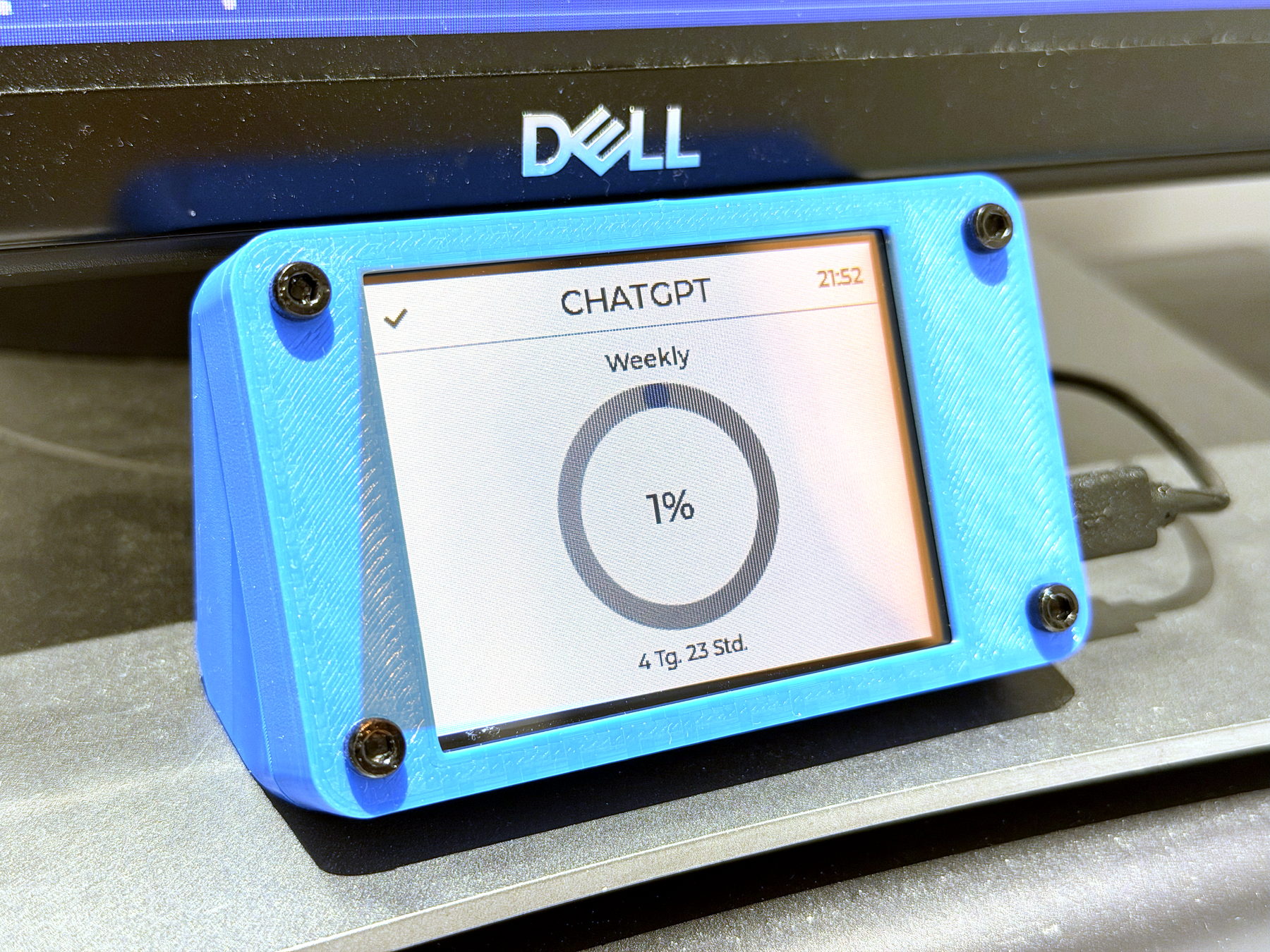
What you will work towards
Keep your AI account usage visible on a small screen beside your computer.
CAIBI’s proposed addition: Prove one account can supply usage locally, then connect the matching display. Add a measured stand after the data path works.
Guide version 1.0. AI can help explain, adapt and debug; you still measure, assemble and test the physical result.
Start with the original
Open-source build
- Toby Marks: AI Monitor source and releases · view source material ↗
- Toby Marks: illustrated Hackster build · view source material ↗
Source reviewed 19 October 2026, not built or assessed by CAIBI. The current repository documents CYD and Guition S3 variants and macOS/Windows companions. Provider access and exact release compatibility still need checking on your computer.
From source to something you can finish
What the source provides: Firmware, companion applications, release downloads and an illustrated build article. Usage reaches the display over USB through a local CodexBar dependency.
What still needs doing: Confirm your account works with the dependency, match the firmware to the display controller, and verify the case licence and fit separately.
Your first milestone: Read one real usage result on the computer before buying a display.
Parts to confirm before buying
- A supported display board and its exact matching firmware target
- A compatible computer, local data dependency and companion release
- USB data cable; optional measured stand
Use the source wiring and bill of materials as the starting point. Confirm exact variants, availability, tools and complete cost before ordering.
The completion route
- Check the linked installation requirements and obtain one account reading locally. Keep credentials out of prompts, screenshots and firmware.
- Match the board identity to a released firmware target. Save the release names and follow the creator installation instructions unchanged.
- Compare the display with the computer reading. Record its update time and what happens when the application stops.
- Measure the working assembly and print a small fit sample before a removable stand. Keep cable access and reset available.
Prompts to move it forward
Copy a prompt into your AI tool with the source material and your actual parts. Work through one small step at a time and check the output before using it. Choose an AI tool or practise the skills first.
Check the source before buying
Review the source material I supply for AI usage limits on a desk display. Make a table of what is provided, missing, contradictory or dependent on a paid service. Identify exact hardware revisions, firmware files, library versions, CAD files and licences. Separate creator claims from your proposed additions. Do not fill gaps with guessed specifications. Finish with one small test that can resolve the biggest uncertainty before I buy parts.

Sources:
Toby Marks: AI Monitor source and releases: https://github.com/tobymarks/esp32-ai-monitor
Toby Marks: illustrated Hackster build: https://www.hackster.io/toby-marks/esp32-desk-display-for-claude-and-chatgpt-usage-limits-71d7e3
Plan the next step
Review the source and my exact installed versions before proposing changes. I want a desk display that distinguishes fresh, stale and unavailable data. Ask me for redacted sample input and the observed disconnect behaviour. Propose the smallest change, retain the existing protocol and give a repeatable before/after test. Do not request account secrets or infer remaining usage from missing data.

Sources:
Toby Marks: AI Monitor source and releases: https://github.com/tobymarks/esp32-ai-monitor
Toby Marks: illustrated Hackster build: https://www.hackster.io/toby-marks/esp32-desk-display-for-claude-and-chatgpt-usage-limits-71d7e3
Design a measured enclosure
Design a stand around my measured working screen. Ask for board outline, mounting holes, active screen area, USB plug and cable bend. Provide a fit coupon first and a removable back. Do not assume that cases for similar-looking screens fit.

Sources:
Toby Marks: AI Monitor source and releases: https://github.com/tobymarks/esp32-ai-monitor
Toby Marks: illustrated Hackster build: https://www.hackster.io/toby-marks/esp32-desk-display-for-claude-and-chatgpt-usage-limits-71d7e3
Check and document the result
Create a test log for AI usage limits on a desk display. Intended outcome: Keep your AI account usage visible on a small screen beside your computer. Separate expected behaviour from observed results. Include power restart, disconnected inputs, communication failure and the actual physical use. Ask me to provide results, firmware versions, changes, photos and unresolved problems. Never mark a test passed without my evidence.

Sources:
Toby Marks: AI Monitor source and releases: https://github.com/tobymarks/esp32-ai-monitor
Toby Marks: illustrated Hackster build: https://www.hackster.io/toby-marks/esp32-desk-display-for-claude-and-chatgpt-usage-limits-71d7e3
What to test and record
- Compare displayed values with their local source at the same time.
- Stop and restart the companion; record whether old information is clearly distinguishable.
- Unplug and reconnect USB, then restart the computer.
- Check readability, touch access and cable strain in the intended desk position.
Keep photos, exact parts and software versions with the test log. Failed or incomplete attempts are useful evidence too.
A possible next version
After one provider works reliably, evaluate a second view. Treat unreleased plugin features as a separate experiment.
What builders are contributing
Suggest something useful, improve a route or share what you made. Contributions are reviewed before publication. Community builds remain attributed to their builders.
Loading reviewed contributions…